

iPhone Shortcuts That Save You 1 Hour Weekly (Simple Automations That Actually Work)

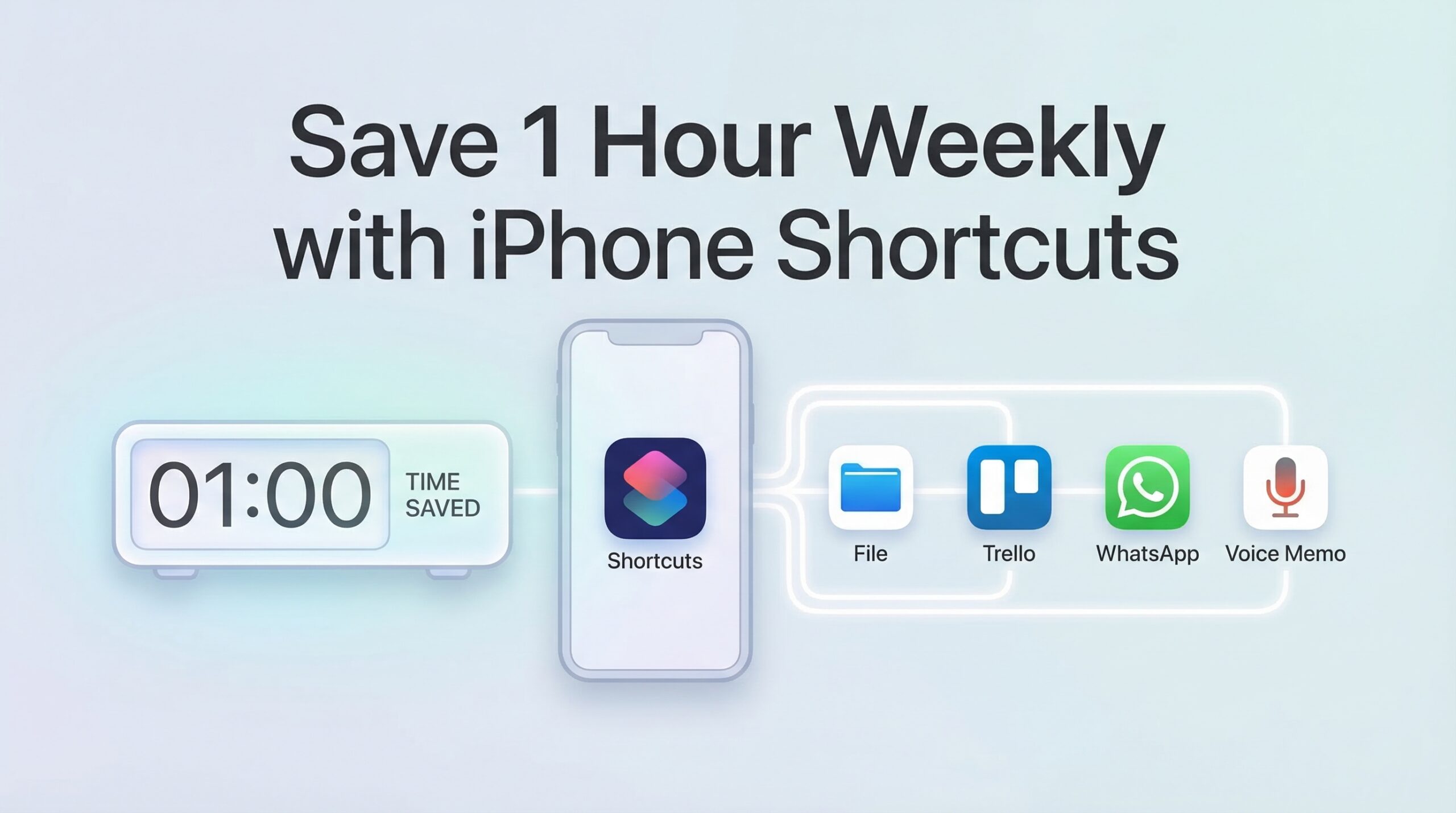
Why iPhone Shortcuts Matter More Than You Think
If you’re using an iPhone daily but not leveraging Apple Shortcuts , you’re probably wasting time on repetitive tasks without realizing it.
Most people think automation is complicated. But in reality, simple iPhone shortcuts can handle tasks like file backup, scheduling messages, and organizing work tools automatically.
The real question isn’t whether shortcuts work — it’s whether you’re using the right ones to actually save time.
This guide focuses on practical iPhone shortcuts that can realistically save you up to 1 hour weekly, especially if you’re running a business or managing multiple workflows.
What Are iPhone Shortcuts & Why They Save Time
iPhone shortcuts are automated actions that execute multiple steps with a single tap or voice command.
Instead of:
- Opening apps manually
- Repeating the same actions daily
- Switching between multiple tools
You automate everything into one seamless flow.
Example Automations:
- Open work apps + enable Do Not Disturb
- Automatically backup files to cloud storage
- Send scheduled updates or reminders
This is where automation shortcut systems create real daily saving time without extra effort.
Add Google Docs Shortcut to Your iPhone Home Screen
Instead of opening Google Docs from Safari or the app every time, you can add a shortcut directly to your iPhone home screen. With just a few taps, your most important documents are instantly accessible — saving precious seconds every day.
This trick works perfectly for frequent users who manage multiple files for work, school, or business. It’s a simple iPhone shortcut that helps you stay organized and reduces repetitive navigation steps.
Follow along with the tutorial in the video below to see how to create your own home screen shortcut for any document.
Using this shortcut can save you minutes each day, which adds up to real daily saving time every week.
Task Management Shortcut with Trello
If you’re using Trello, you can create a shortcut that lets you manage tasks without opening the app manually.
- Add tasks instantly
- Assign labels
- Set deadlines
This is one of the most underrated business automations—especially for entrepreneurs managing multiple ideas daily.
Using a Trello shortcut like this can save you time and reduce repetitive task management, helping you focus on high-priority work.
Schedule WhatsApp Messages
WhatsApp doesn’t have a native scheduler, but you can simulate scheduled messages using iPhone shortcuts. This lets you automate sending reminders and pre-fill messages at your chosen time.
- Trigger reminders
- Pre-fill messages
- Use automation timing
Step-by-Step Example:
- Open the Shortcuts app on your iPhone.
- Create a new shortcut and name it “Schedule WhatsApp Message”.
- Add the action “Text” and type your pre-filled message.
- Add the action “Send Message via WhatsApp” and select the recipient.
- Add a “Wait” or “Date/Time” action to schedule when the message should send.
- Optionally, add a notification to confirm the message is queued.
- Run the shortcut, and it will simulate scheduled messaging at the selected time.
This shortcut helps simulate scheduling WhatsApp messages, saving you time and ensuring important messages are sent even if you forget.
The “Daily Work Mode” Blueprint
This is the automation that iPhone power users swear by. A single icon on your home screen, back‑tap, or Siri voice triggers a chain reaction:
- Notifications keep buzzing
- Hunting for work apps
- Brightness at 80% (harsh)
- No timer – focus drifts
- 2 minutes × 5 = 10 min/day
- Do Not Disturb on (zero noise)
- Slack, Mail, Asana open instantly
- Brightness 40% (eye comfort)
- 25‑min timer starts
- 10 seconds total – saves ~1h/week
1. Do Not Disturb (the foundation)
The shortcut sets DND until you turn it off (or for 2 hours). Stop glancing at iMessage or Instagram — regain 15 focused minutes per session.
2. Open Your Work Apps (instantly)
Instead of tapping Slack, Mail, then Notion, the Shortcuts action “Open App” launches multiple apps at once. Eliminate the “where was I?” lag and dive straight into work.
3. Set Brightness (the subtle time saver)
Work Mode sets brightness to a consistent 40% (or your preferred level). No squinting, no fumbling—small daily saving that adds up.
4. Start a Timer (the invisible anchor)
Automatically starting a Pomodoro timer provides a psychological cue: “I am in focus until the bell.” No more “just 5 more minutes” distractions.
Small Automations, Big Time Wins
The power of iPhone shortcuts isn’t in complexity—it’s in consistent, smart automation. By automating just a few key routines:
- • Automatic file backup
- • Task management shortcuts
- • Daily workflow automation
Even starting with 2–3 shortcuts can eliminate repetitive tasks and create noticeable time savings in your daily routine.
Experience iPhone Shortcuts Yourself
If you’re currently on Android and want to explore the productivity benefits of iPhone automation, our high-quality used iPhones make it easy to switch and start saving time instantly.
Browse Used iPhones