

How Can You Check If a Used Phone Is Fully Functional Before Buying?

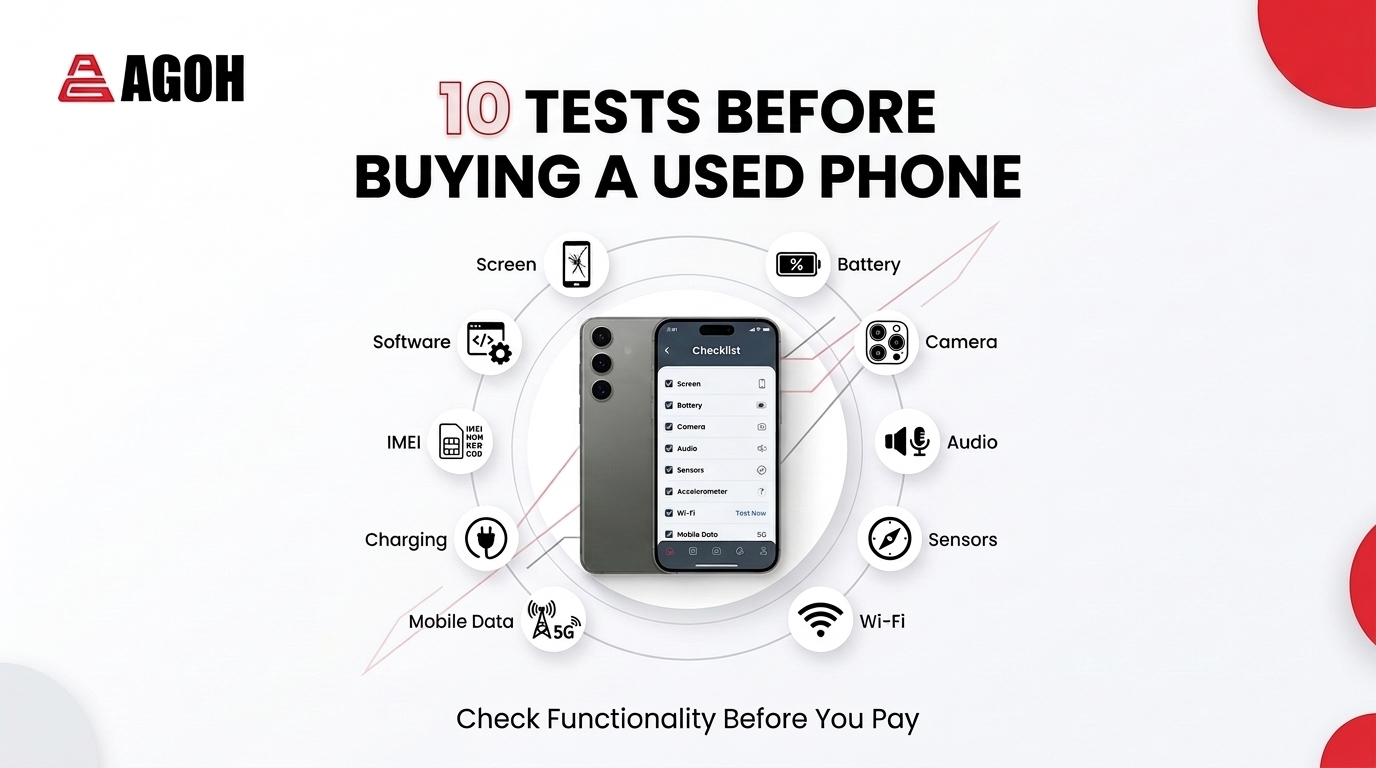
Buying a used smartphone can be a great way to get a capable device at a lower price. However, appearance alone does not tell you whether a phone is working properly. A device may look almost new while having problems with its battery, touchscreen, camera, speakers, charging port or internal components.
Knowing how to check a used phone before buying can help you identify potential problems before handing over your money.
The good news is that you do not need specialised equipment for most basic checks. With a few simple tests, you can evaluate the phone’s major functions and make a more informed decision.
Here is a practical checklist to help you check a used phone before buying.
Used Phone Health Check
Test the phone's key functions before buying a used device.
Screen
Check for cracks, dead pixels, brightness issues and touchscreen problems.
Battery
Check battery health, unusual drain, overheating and overall battery performance.
Camera
Test the front and rear cameras, autofocus, flash and image quality.
Audio
Test the speakers, earpiece and microphone for clear sound and recording.
Sensors
Check proximity, accelerometer, gyroscope, fingerprint and other available sensors.
Connectivity
Test Wi-Fi, Bluetooth, mobile data, SIM connectivity and network performance.
Software
Check the operating system, account locks, unusual apps and potential security issues.
Charging Port
Check charging, cable connection and whether the port feels loose or damaged.
All Checks Passed
The phone has passed this basic functionality checklist. You should still verify the device's condition, warranty and seller information before buying.
Spot the Problem
Click the highlighted areas to see what you should inspect.
Inspect the Phone's Physical Condition
Check each area carefully for signs of damage, drops, cracks or liquid exposure.
Screen
Touchscreen Test
Drag across the screen to check whether every area responds to touch.
Test the Entire Touchscreen
Drag your finger across the virtual phone screen and cover as much of the display as possible.
Screen Fully Tested
You have covered the entire touchscreen area. If the phone responded normally throughout the test, the touchscreen appears to be functioning correctly.
Audio & Button Test
Test the physical buttons, speaker and microphone before buying.
Test each component on the actual phone, then select Pass if everything works normally or Check if you notice a problem.
Power & Volume
Press the power and volume buttons several times. They should respond consistently without excessive force.
Speaker Test
Play music or make a test call. Listen for crackling, distortion or unusually low volume.
Microphone Test
Record a short voice note and play it back. Your voice should sound clear without excessive static or distortion.
Complete All 3 Tests
Test the power and volume buttons, speaker and microphone before making your purchase.
Camera Quality Check
Test both cameras and look for common image problems.
Open the camera on the actual phone and test the front and rear cameras. Use the examples below to help identify potential problems.
Rear Camera
Take photos of objects at different distances and check the focus.
Common Camera Problems
Blurry Focus
Images remain blurry even after tapping the subject to focus.
Lens Damage
Look for cracks, scratches or damage around the camera lens.
Image Spots
Persistent dark spots or lines may indicate a sensor problem.
Focus Test
Photograph objects at different distances. Tap different subjects and check whether the camera focuses quickly and produces clear images.
Photo Quality Test
Take several photos in different lighting conditions. Check for unusual spots, lines, discoloration or areas that remain blurry.
Video Test
Record a short video and play it back. Check whether the image, autofocus and camera switching work normally.
Camera Test Not Complete
Test focus, photo quality and video recording before deciding whether the camera is working properly.
Smartphone Sensor Check
Click each sensor to learn what it does and how to test it.
Select a sensor on the phone diagram below. Then perform the suggested test on the actual phone you are considering buying.
to inspect
Select a Sensor
Click one of the sensor icons on the smartphone diagram to learn what it does and how you can test it.
How to Test
Choose a sensor to see the recommended test.
Sensor Test Progress
0 / 4 Sensors Checked
Test the sensors on the actual phone before making your purchase.
Connectivity Test
Test the phone's Wi-Fi, Bluetooth, mobile signal and mobile data before buying. Complete all four checks to get an overall result.
Wi-Fi
Check wireless internet connection
Connect the phone to a reliable Wi-Fi network and browse several websites. Check whether pages load normally without frequent disconnections.
Bluetooth
Check Bluetooth connectivity
Turn on Bluetooth and connect the phone to a compatible accessory such as earbuds, headphones or a speaker if one is available.
Mobile Signal
Check calls and network connection
Insert a compatible SIM card if possible. Check the signal indicator and make a test call to confirm that the phone can connect to the mobile network.
Mobile Data
Test mobile internet performance
Turn off Wi-Fi and use mobile data to browse the internet. If available, run a mobile data speed test and record the result below.
Connectivity Test Completed
You have checked all four connectivity areas. If any test shows "Check", investigate the issue further before buying the used phone.
Battery Health Check
Check the battery condition, charging behaviour, heat and battery drain before buying a used smartphone.
Battery Health
Check available battery condition information
Open the phone's battery settings and check whether battery capacity or battery health information is available.
Charging
Check whether the phone charges normally
Connect the phone to a compatible charger and check whether charging starts normally and remains consistent.
Heat
Check for unusual heating
Use the phone normally for several minutes and observe whether it becomes unusually hot, especially while charging or performing demanding tasks.
Battery Drain
Observe battery percentage changes
Observe the battery percentage for several minutes while using the phone. Pay attention to sudden or unusually rapid drops.
Battery Check Completed
You have checked the four main battery areas. If any result shows "Check", investigate the issue further before buying the used phone.
IMEI & Software Verification
Verify the phone's identification details, account status, carrier lock and software before buying a used device.
IMEI Match
Compare the phone's identification number
Check the IMEI shown in the phone settings and compare it with the packaging or other available documentation where appropriate.
Account Lock
Make sure no previous owner's account remains
Check whether the phone is still linked to another person's account. The previous owner should remove their account before the device is transferred to you.
Carrier Lock
Check whether the phone is restricted to a network
If possible, test the phone with a compatible SIM card and check whether it connects to the expected mobile network.
Software Updates
Check the current software version
Open the software update section in the phone settings and check whether the device can access available updates.
Device Information
Verify the phone's basic information
Review the device settings and compare the model, storage capacity, software version and other available information with what the seller has advertised.
Verification Completed
You have completed the IMEI and software checks. If any result shows "Check Further", "Locked" or "Does Not Match", investigate the issue before buying the used phone.
Final Verdict
Learning how to check a used phone before buying can save you from unexpected repair costs and frustrating problems later.
You do not need to test every component like a professional technician. Start with the physical condition, then test the screen, buttons, cameras, speakers, microphone, sensors, connectivity, battery and charging. Finally, verify the IMEI, software and account status.
If the seller allows you to perform these checks, take your time rather than rushing through the process. A few minutes of testing can reveal problems that are impossible to identify from photos or a quick visual inspection.
Most importantly, do not judge a used phone solely by how good it looks. A phone that looks excellent is not necessarily a phone that functions perfectly. A proper inspection gives you a much better idea of what you are actually buying.
Related Posts

Tired of Confusing Phone Specs? Ini Cara Lebih Mudah Compare Smartphones Sebelum Beli
-
Posted by
 Amir I
 - 0 comments

Buying From Online Marketplace vs Trusted Phone Store: Mana Pilihan Yang Lebih Berbaloi?
-
Posted by
Amir I
- 0 comments
Smart Buyer’s Guide to Used Phones: Save Money & Skip Regrets
-
Posted by
Amir I
- 0 comments